
The easiest way to organize family photos is to make this year's pictures findable before tackling every older device. I choose one main library, build a few meaningful albums, and check that important originals have a recoverable copy. You can do that without spending a weekend deciding which of twelve nearly identical birthday pictures deserves to exist.
Photo clutter is unusually emotional because the files are memories. A messy camera roll can feel like an unfinished responsibility to your family. My approach starts with making those memories usable, then deals with storage and older collections in manageable batches.
Decide which library is the home
A family photo organization system needs a clear answer to one question: where do we look first?
Choose a main library that the people responsible for the photos can use. That might be Apple Photos, Google Photos, or a computer-based archive. A mixed-device household needs to consider access from every relevant device, not simply choose the prettiest interface on one phone.
Write down the account that owns the library and who can access the shared collections. Sharing an album does not necessarily give another person control of the whole account, its billing, or its recovery options.
I separate three roles:
Main library: the collection I search and organize.
Shared albums: selected pictures other people can view or contribute to.
Recovery copy: a separately protected copy of important originals.
Those roles can involve more than one service. The point is that each has a job. Two apps both uploading everything can create confusion if nobody knows which library is complete or what deletion does in either one.
Begin with one event you want to find again
Choose a recent event with an obvious boundary: a birthday, a school performance, or a weekend trip. Select a useful set and create an album with a name you will recognize later, such as “2026 Lake Weekend.”
The best way to organize digital photos is the one that helps you retrieve something meaningful. An album does not need every shot from the event. Keep enough context to tell the story: people, place, an ordinary detail, and a few moments worth revisiting.
I do not start by deleting all the less attractive pictures. First I make the useful collection. Selection and destruction are different decisions, and combining them makes a small project feel much larger.
If two pictures show different expressions or different people looking at the camera, they may both matter. Similar is not the same as interchangeable. Leave uncertain choices alone until you have a reason to compare them carefully.
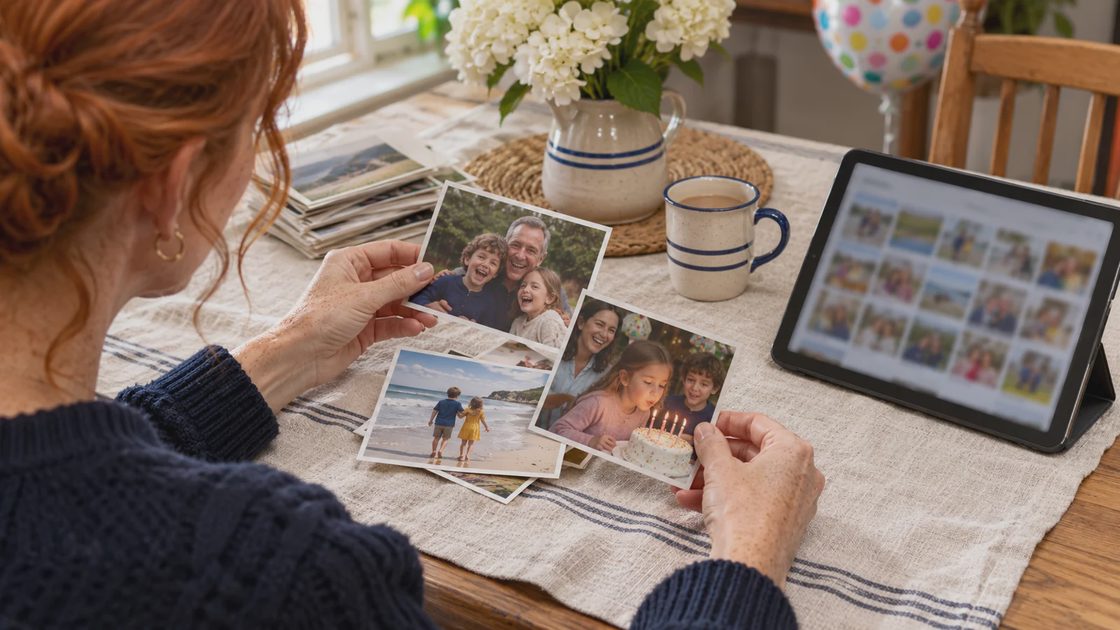
For a family member who only wants to see the highlights, share the curated album rather than asking them to understand the entire storage system. Successful organization should lower the effort for the next person too.
Use each app's organization tools for their actual purpose
Google Photos: albums, stacks, and search
For how to organize photos in Google Photos, begin with an album for a real event or purpose. Select pictures and add them to an album, then check the album from Collections. Removing a photo from an album is different from deleting it from the library; the album controls distinguish those actions.
Google Photos photo stacks group similar backed-up pictures in the mobile app. They can make the main view less crowded, but grouping does not reduce storage. Open a stack before deciding which pictures to share or remove, because the displayed top pick is not the entire group.
I use stacks as a browsing aid. A compact view is useful, but it is not proof that duplicates were deleted or that every valuable expression is represented by the chosen cover.
Google Photos Ask Photos offers conversational help where the feature is available. Treat an AI search as another route into the collection. If a result is incomplete, try a date, place, person, or conventional search instead. I do not make organizing depend on an optional AI feature appearing in every account.
iPhone: keep albums separate from deletion
For how to organize iPhone photos, start with an album or favorites collection that matches what you want to find. Keep the main library as the larger source collection rather than expecting an album to behave like an independent folder of copied files.
With iCloud Photos, changes synchronize across devices using the same library. Deleting an item is not simply clearing one phone. Review the iCloud Photos behavior before making storage cleanup part of an organizing session.
My first iPhone session is selection and naming. I postpone deletion until I understand the library's synchronization and the protection of the originals. That keeps a worthwhile album project from becoming an accidental storage experiment.
Bring other devices in one batch at a time
When deciding how to organize photos across devices, list the sources before importing: current phones, an older phone, camera cards, computer folders, and pictures relatives have sent.
A short source record prevents repeated imports and unexplained gaps.
Source | Collection to check | Evidence it arrived |
|---|---|---|
Current phone | Recent month or event | First and last dates, several full-size photos, one video |
Camera card | Named trip or shoot | Expected event coverage and working files |
Older computer | One dated folder | A checked destination and a note about what remains |
Relative's contribution | Selected shared event | Correct people/event, with useful original quality where available |
Keep the original source until the destination is checked. A thumbnail is not enough: open several photographs and play a video. If dates look wrong, investigate before using them as the basis for automatic sorting.
For older collections, keep recognizable batches intact at first. A folder named after a camera card or former computer can preserve context while you work out its dates. You can improve naming without flattening everything into one enormous undifferentiated folder.
Before sharing an album, decide who needs access and what they need to see. A public collection for an event can have a different audience from a private family memory album. I check the actual recipient list and sharing controls rather than assuming that a friendly album name makes it private. Ask before including another family’s children in a broadly shared collection, and keep school forms, medical screenshots, and other administrative images out of the memory album.
Give important originals a recovery path
How to back up family photos is a different question from how to display them neatly. Synchronization makes a library convenient across devices; an independent recovery copy helps when the main library is changed, lost, or inaccessible.
Choose a copy method you can maintain, such as a checked export to an external drive plus another appropriately protected location. The specific arrangement depends on your devices and storage needs. What matters is that you can identify what was copied and open it independently.
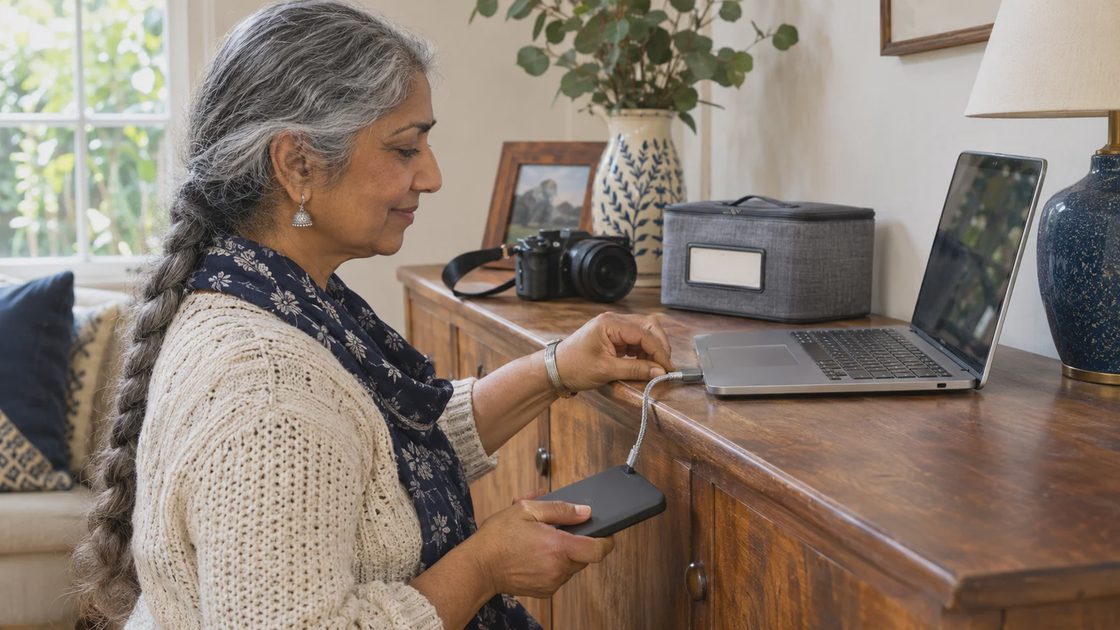
For a useful check, select a photograph from a recent important event and locate its recovery copy without relying on the main photo app. Open it, confirm the date and quality, and verify that an associated video plays if you keep video memories too.
Do not keep the only recovery drive permanently dependent on the same device you are trying to protect. Record when you last updated the copy and which new events are still waiting. “Backed up” should describe checked coverage, not merely ownership of a drive.
Make the ongoing routine smaller than the backlog
I give new photos a short recurring review: select favorites, name an important event, check sharing, and confirm the recovery copy is current enough for the pictures that matter.
Older photos get a separate project list. “Import the 2019 camera folder” is a task with a boundary. “Organize all family photos” has no clear finish and competes with everything else happening at home.
If storage is comfortable and the event is findable, skip unnecessary deletion. If storage is tight, review the service's storage tools as a deliberate second task, with the original-copy check already complete.
A useful family collection has a known home, recognizable albums, and a recoverable set of important originals. It can still contain ordinary duplicates and unfinished older batches. Start with one recent event, create an album you can find again, and check one original outside the main library. That is a complete improvement you can build on next week.




No comments yet — be the first to share a thought.