
To create an email template in Gmail, enable Templates in desktop settings, write a reusable draft, and save it through the compose window's Templates menu. I save the part that stays true and leave clear markers for the details that change. That keeps a faster reply from becoming a confident message with yesterday's date or somebody else's name.
Repeated email is tiring because you are rebuilding the same explanation while trying to sound helpful. A good template removes that repeated composition work and leaves you free to answer what is different this time.
Pick a reply that repeats for the same reason
Choose one message you write frequently: asking for missing information, confirming a handoff, or explaining how to submit a document. Avoid starting with a complex response that changes substantially for every person.
I look for a stable purpose and a small number of changing facts. A request for a missing registration detail has a repeatable structure. A sensitive disagreement needs more individual judgment and is a poor first template.
Separate the draft into two parts:
Stable wording: the explanation or request that remains accurate.
Variable details: names, dates, links, amounts, attachments, and promises.
A template is ready when those boundaries are obvious. If every sentence contains an exception, save a checklist for writing the reply instead. Reusing an unsuitable paragraph can create more editing than writing a fresh message.
Enable templates in Gmail on a computer
Open Gmail in a desktop browser. Go to Settings, See all settings, then Advanced. Enable Templates and save the changes.
Gmail templates are enabled and used from Gmail on a computer. If you are looking in the mobile app, that is an important reason the menu may be missing. Use the template setup controls rather than hunting through unrelated phone settings.
Then compose a new draft with the text you want to reuse. Open More options at the bottom of the compose window, choose Templates, then save the draft as a new template. Give it a name that describes its purpose, such as “Request missing registration details.”
I save from a clean draft. Old quoted threads, personal details, and an automatic signature can make reuse messy if they are accidentally included. Inspect what is actually saved before treating it as ready.
Write the blanks so they are hard to miss
Use a consistent marker for information that must change. Square brackets make the variable visible without pretending Gmail will fill it automatically.
For example, [NAME], [DATE], [DOCUMENT LINK], and [NEXT STEP] tell you where attention is required. These are manual editing markers, not built-in mail-merge fields.
Avoid a placeholder that could pass as a real detail. “Tuesday” looks like an actual commitment; [CONFIRMED DAY AND DATE] asks you to make the decision deliberately.
I keep deadlines out of the stable paragraph unless the deadline really is stable. “Within two business days” can still be a promise your workload does not support. A useful template should not quietly commit you to a service level you never intended.
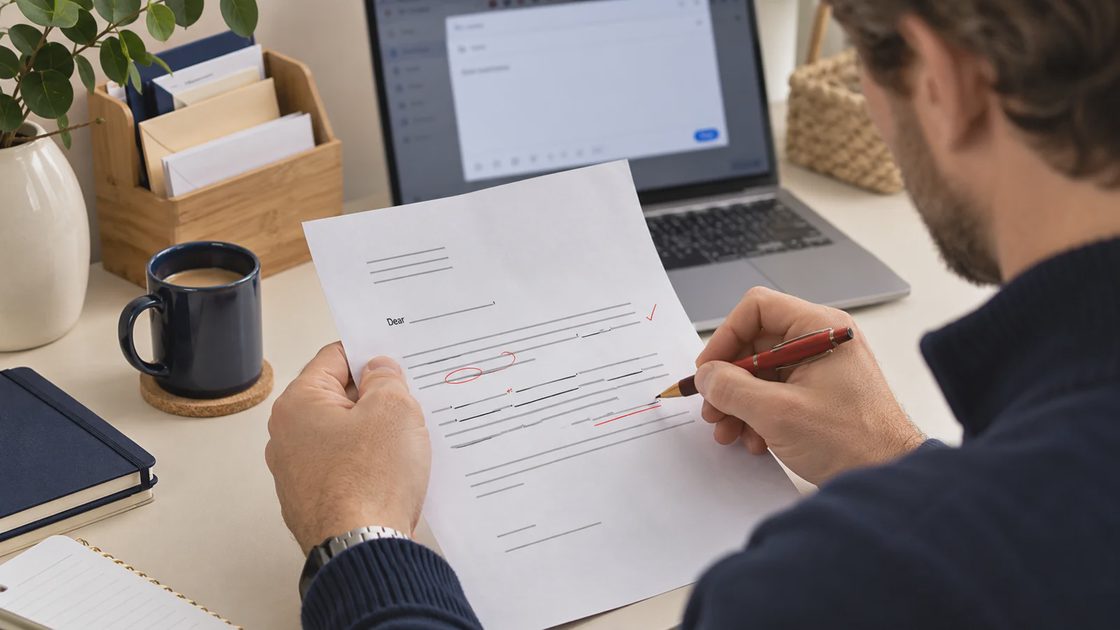
Make the details you need to change easy to spot
Save the wording you reuse, but leave names, dates, and other changing details in square brackets. Before sending, replace each bracketed field with the information for that specific email.
For example:
In the saved template | Before sending |
|---|---|
Hi [NAME], | Hi Jordan, |
Please send [MISSING ITEM]. | Please send the signed registration form. |
I will reply by [DAY, DATE]. | I will reply by Thursday, November 12. |
Gmail does not fill in these brackets automatically. They are reminders for you to edit the message.
I use brackets instead of leaving an old name or date in the saved wording. An unchanged [DAY, DATE] is easier to notice than “Tuesday,” which can look correct even when it belongs to a previous conversation.
Keep promises that may change inside brackets too. Instead of saving “I will respond within two business days,” save “I will respond by [DAY, DATE].” Choose the date after checking what the current request requires and when you can realistically complete it.
Three Gmail template examples you can adapt
Ask for missing information
Use this when you cannot move forward until the recipient sends a particular document or answer.
Hi [NAME],
Thanks for sending this over. Could you also send [MISSING ITEM] by [DAY, DATE]? I need it to [EXPLAIN WHAT YOU WILL DO NEXT].
Thanks,
[YOUR NAME]
Make the missing item specific. For example, replace [MISSING ITEM] with “the signed registration form” and the final field with “complete your registration.”
The recipient should understand what to send, when you need it, and why it matters.
If the document belongs in a secure upload portal, add a direct instruction such as “Please upload it here: [LINK].” Check that the link works and gives the recipient the access they need.
Confirm who is doing what
Use this after a conversation when you want everyone to leave with the same understanding of the next step.
Hi [NAME],
Confirming our plan for [PROJECT OR EVENT]: [PERSON OR TEAM] will [SPECIFIC ACTION] by [DAY, DATE].
The current instructions are here: [LINK].
Please let me know if this responsibility or deadline needs to change.
Thanks,
[YOUR NAME]
For example, the first paragraph could become:
Confirming our plan for the school fundraiser: Jordan will send the final volunteer schedule by Thursday, November 12.
That sentence identifies the work, the person responsible, and the deadline. If no supporting document is needed, remove the instructions line.
I link to the current document rather than copying all its contents into another email. Before sending, confirm that the recipient can open the link.
Acknowledge a request and give a response date
Use this when you have received the message but need time to investigate or prepare an answer.
Hi [NAME],
Thanks for your message about [TOPIC]. I need to check [DETAIL TO VERIFY] before I can answer.
I will send you an update by [DAY, DATE].
Thank you,
[YOUR NAME]
For example, you might need to confirm whether a room is available before answering a booking request. Name that check so the recipient understands what you are waiting on.
Promise an update when you cannot yet promise a final answer. If the issue remains unresolved on the date you gave, explain what you have confirmed and what still needs checking.
Add an alternative contact only when someone has agreed to help during that period. Otherwise, the clear response date is enough.
Insert, edit, and test before relying on it
In a new compose window, open Templates and insert the saved wording. Replace every bracketed marker and read the complete message once as the recipient will see it.
To edit Gmail templates, insert the existing template into a clean draft, make the changes, and save it over the intended template. Select the correct saved name when overwriting. Deleting a template is a separate action and is not an editing shortcut.
Send a harmless test to yourself if the template includes formatting or links. Confirm the subject, signature, paragraph spacing, and link destination. Check whether the wording still makes sense on a phone without relying on a carefully arranged desktop view.

I also search the draft for the opening bracket before sending. That simple check catches an unchanged marker, although it does not replace reading for a wrong promise or an outdated fact.
Gmail templates not showing: check the context
Start with the account and interface. Templates belong to the Gmail account where they were saved, and the feature is used from the desktop browser. A template in one account does not establish its existence in another open mailbox.
Next, confirm Templates is enabled under Advanced and the setting was saved. Then open the compose window's More options menu. The feature is not the same as an inbox-level action or a mobile keyboard suggestion.
If a saved draft changed but the inserted template did not, check whether you actually overwrote the template. Editing an ordinary draft does not necessarily update the reusable saved version.
Older articles may call the feature Gmail canned responses. The current template workflow is the relevant place to look. Avoid installing an extension merely because an older label does not appear in your settings.
Keep a small library of replies that stay accurate
Name templates by the job they perform, not by the person who happened to need the first version. “Confirm document handoff” will remain understandable after the original project ends. A list of names such as “Reply 1” and “New final” makes the insertion menu another search problem.
Review a template when the underlying process changes: a different submission address, a new document location, or an updated response window. Open the saved version and check the actual wording rather than assuming that editing a related document changed the email too.
I remove a template when its purpose disappears or every reuse requires substantial rewriting. Keeping dozens of marginal drafts makes it harder to choose the dependable one. If two templates differ only by a short detail, consider one clear variable field instead of preserving two almost identical messages that can drift apart.
For a shared process, keep the approved wording in the team's normal reference location as well. An individual account's template menu should not be the only explanation of a procedure another person may need to cover.
Gmail templates vs Help me write
A saved template preserves wording you have approved for a repeatable job. Help me write generates or changes wording from a request and has its own availability. I use a template when consistency matters and an AI draft when the message needs a fresh structure or explanation.
Either route still requires checking names, commitments, recipients, and attachments. Generated wording does not verify the underlying facts, and a saved paragraph does not know that a deadline changed.
Gmail templates are most useful when they remove repeated typing while leaving the important decisions visible. Start with one reply you rewrite often, save only the stable wording, and test it in a fresh draft. Keep the template that reduces editing and revise any sentence that repeatedly needs correction.





No comments yet — be the first to share a thought.