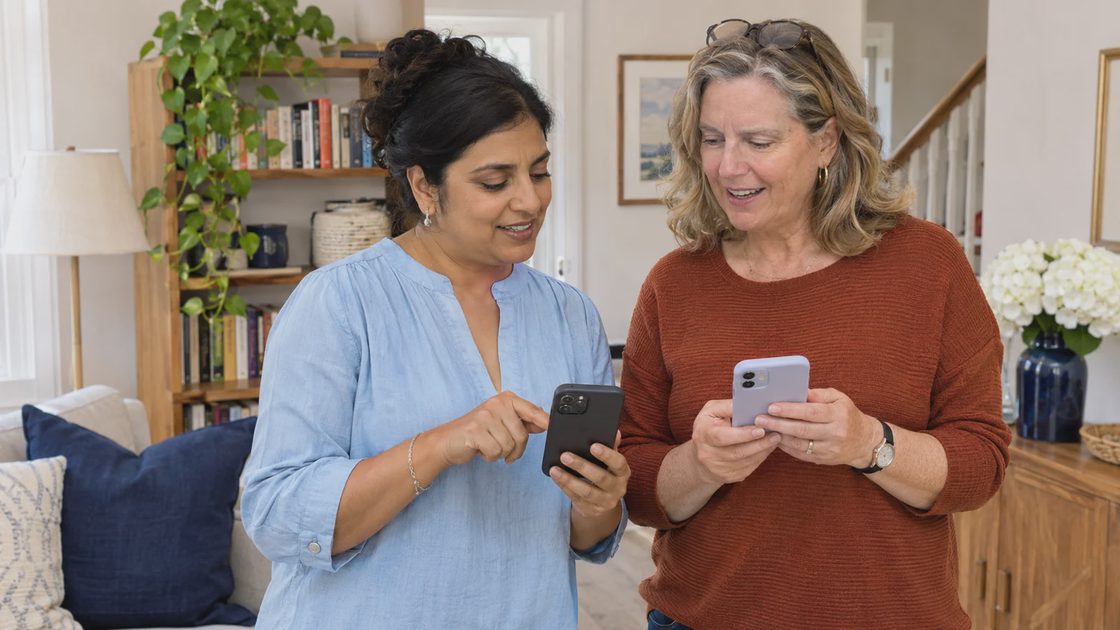
To share a Wi-Fi password, use nearby password sharing between compatible Apple devices or show the network's QR code for a phone that can scan it. For guests, I share the guest network when one is available. That gets someone connected without turning a visit into a search for the tiny label behind the router.
The right method depends on the devices, but the first check is the same: confirm the network you intend to share. A convenient sharing button can still pass along the wrong saved network or your main household credentials.
Choose the route for the two devices
Sharing situation | Route to try first |
|---|---|
iPhone to nearby iPhone, iPad, or Mac | Apple nearby password sharing |
Android phone to another scanning phone | Network QR code in supported Wi-Fi settings |
iPhone to Android | Network QR code where available, or the displayed password |
Mac to iPhone | Apple nearby password sharing or supported Passwords controls |
Guest visiting your home | Share the guest network's credentials, if configured |
A Wi-Fi password QR code carries the connection details. It is a way to provide access, not a method of hiding credentials from the person receiving it. Share it with the same care you use for the underlying password.
If a device does not support the convenient route, manually entering the correct password is still a reasonable solution. I do not add a third-party app solely to avoid typing one household credential.
Share a Wi-Fi password from iPhone to another Apple device
Make sure the iPhone providing access is unlocked and connected to the intended Wi-Fi network. Keep the other device nearby. On the receiving device, select that network in Wi-Fi settings; accept the sharing prompt on the connected device when it appears.
The devices need the relevant Apple Account and contact setup, Wi-Fi and Bluetooth enabled, and Personal Hotspot off. Each person should have the other's Apple Account contact details saved. The Apple password-sharing checklist covers these conditions.
I verify the network name on the receiving device before accepting the request. That is especially useful in an apartment building where several similarly named networks can appear in the list.
After sharing, check that the receiving device shows the expected network and can open an ordinary webpage. A connection indicator alone does not establish that internet access is working.
Share a Wi-Fi password from Android
On supported Android devices, open Settings, then the network or Internet area. Open the connected Wi-Fi network and choose Share. Authenticate if prompted, then show the QR code to the receiving phone.
The recipient scans the code using a supported camera or network-scanning control and follows the join prompt. Manufacturer menus vary, so look for the network's share control rather than assuming every Android phone uses exactly the same labels.
The Android network-sharing instructions show the supported settings route. If the receiving camera does not recognize the code, try its Wi-Fi QR scanner where available before concluding that the network is at fault.
Hold the code still and make the display easy to scan. A very dim screen, glare, or a tightly cropped image can interfere with recognition. Once the join prompt appears, check the network name before connecting.
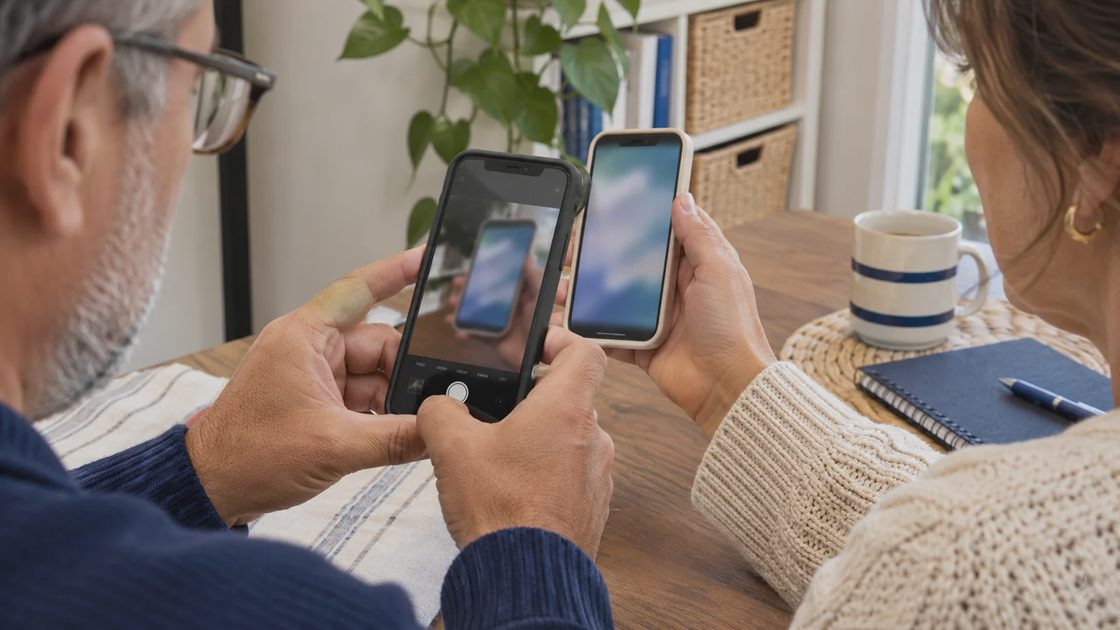
Share a Wi-Fi password from iPhone to Android
Apple's nearby sharing prompt is designed for compatible Apple devices. For an Android guest, use a supported network QR code or show the password so it can be entered on the other phone.
On current iPhones with the Passwords app, open Wi-Fi, choose the network, and inspect the password or the option to show the network QR code where available. The iPhone saved-network controls distinguish those options.
This is different from taking a screenshot of an Apple sharing prompt and expecting it to work as a QR code. Use the actual network QR display or the credential itself.
I prefer the device's built-in route over pasting a household password into an unfamiliar online QR generator. The built-in display avoids an unnecessary extra service in a job the phone can already perform.
If the iPhone version does not show that option, use its supported password-viewing method or the router's known management app. Enter the network and password carefully on the recipient device, including capitalization and punctuation.
Share a Wi-Fi password from Mac to iPhone
For a compatible Mac and iPhone, keep the devices nearby, unlocked as required, and connected through the appropriate Apple Account and Contacts setup. The Mac must know and be connected to the network being shared.
Choose the network on the iPhone and respond to the sharing prompt on the Mac. Current Passwords controls can also show saved Wi-Fi information, with options depending on the macOS version.
Do not sign a guest into your Apple Account simply to make sharing work. The intended nearby process connects the network while each person keeps their own account. If the contact setup is inconvenient for a one-time guest, use a guest-network password or QR code instead.
The success check remains practical: correct network, working webpage, and no unexpected account change on either device.
If iPhone Wi-Fi password sharing is not working
I check the conditions that produce the prompt before resetting anything:
Is the sharing device unlocked and connected to the intended network?
Has the recipient actually selected that network?
Are Wi-Fi and Bluetooth enabled, with the devices close together?
Is Personal Hotspot off, and are the contact details correct?
If those are correct and the prompt still does not appear, restart the devices and try again. For a guest who needs access now, the QR or manual route may be faster than prolonged troubleshooting.
Do not reset the router or change its main password as the first response to a missing phone prompt. Those actions can interrupt the household's connected devices while leaving the original sharing-condition problem unexplained.
Give visitors an access route that stays manageable
Guest Wi-Fi network setup depends on the router. Use its supported management interface, choose a distinct network name and password, and review any settings controlling access to local devices.
A guest network can separate visitor access from the main network, but its exact isolation and shared-device behavior depend on the equipment and configuration. Check those options rather than assuming the word “guest” guarantees every boundary you want.
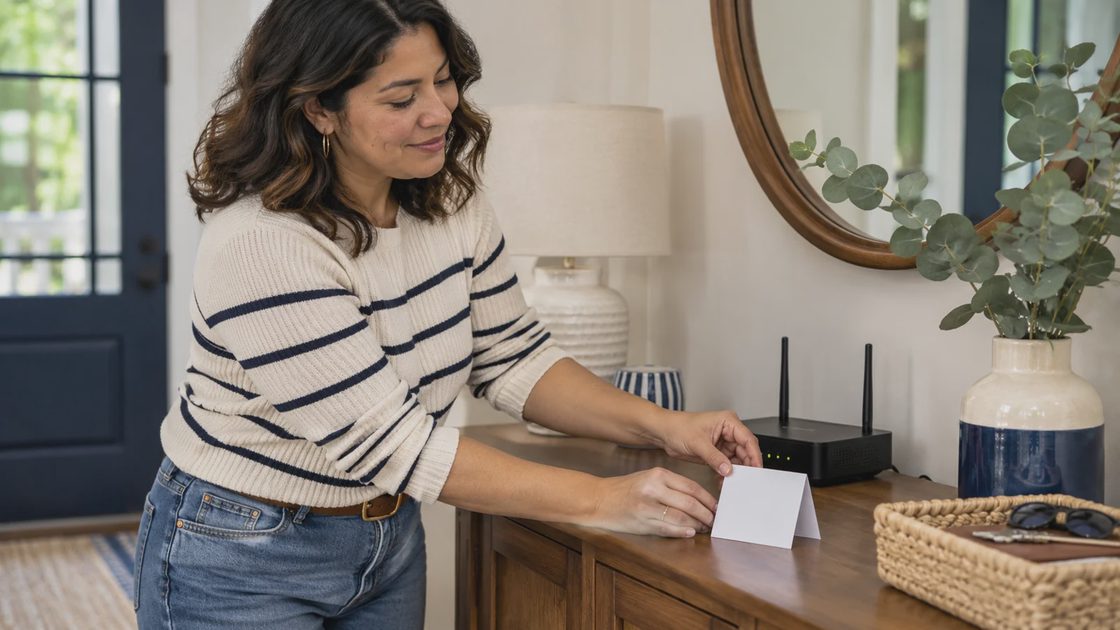
For visitors who need to cast to a television or use a printer, decide whether and how the router permits that access. A guest connection that blocks the required device may need a deliberate configuration choice, not a workaround involving your account password.
Keep a current guest QR code or password in an appropriate place if visitors arrive regularly. When you change the guest password, update the shared card or saved image too. An obsolete code creates a confusing problem that looks like a phone failure.
Separate a joining problem from an internet problem
If the code scans but joining fails, check the network name and whether the password has changed since the code was created. A saved image can contain old credentials even while the host's phone remains connected with newer information.
If the device joins but cannot load a webpage, the password-sharing step may already be complete. Check whether another connected device can use the internet. A router or service problem needs a different response from a phone that cannot recognize the QR code.
A hotel, workplace, or other managed network can also require a sign-in page or additional authorization. Sharing a password does not bypass that requirement. Use the network operator's intended guest process instead of trying to imitate a home-network setup.
Keep the troubleshooting tied to the observed stage: recognizing the code, joining the network, or reaching the internet. That distinction avoids changing a working password to solve an unrelated connection problem.
Finish with a connection you have checked
Sharing Wi-Fi without typing a password is convenient when the devices support the route. Nearby Apple sharing, built-in QR codes, and guest-network credentials each solve a different part of the household problem.
Choose the method that fits the two devices, confirm the intended network, and open a webpage on the recipient's phone. Once that works, keep the guest details current and leave account credentials out of the exchange. The useful result is a connected visitor and a household network whose access still makes sense.

No comments yet — be the first to share a thought.