
For most families mixing iPhones and Android phones, I recommend starting with Google Calendar. Choose Apple Calendar when everyone already uses iCloud, TimeTree when plans need ongoing conversation, or Cozi when you want schedules and household lists together. The best shared calendar app is the one that lets another person handle the next pickup without asking you to reconstruct the plan.
The exhausting part of family scheduling is often being the person who remembers everything. An appointment goes into the calendar, yet you still explain the address, confirm the driver, and send another reminder. A shared family calendar should make that information usable by everyone, including the least enthusiastic planner.
Match the app to the household you already have
I prioritize three things: familiar accounts, clear responsibility, and reminders that reach the right person. Here is where each option earns its place.
Your household's main need | My starting recommendation | The trade-off that matters |
|---|---|---|
Different phones, straightforward shared events | Google Calendar | Each person needs their own access and notification setup |
Everyone already uses iCloud | Apple Calendar | Private sharing requires Apple Accounts and iCloud |
Plans change through messages and discussion | TimeTree | Another app to check; notification volume needs tuning |
Calendar, groceries, and household tasks together | Cozi | Shared account access; useful features require a paid plan |
I compared the documented sharing options, account requirements, reminders, and household features. Start with the row that describes your family, then consider the details below.
Google Calendar: my first choice for mixed phones
For a family calendar app for iPhone and Android, Google Calendar is a sensible starting point when adults already have Google accounts. Its personal-account calendar features provide a free shared calendar app without introducing a household subscription.
You can share a separate calendar with named people and choose whether they can view or edit. Google's sharing instructions explain the permissions and the invitation email recipients must accept. Keep personal appointments separate; add only the details needed for coordination to the shared calendar.
A calendar called Family also appears automatically when you create a Google family group. However, Google says that family calendar does not notify you when another member creates, edits, or deletes an event. If last-minute changes are your biggest problem, plan an explicit handoff instead of assuming everyone received an alert.
Apple Calendar: easiest to justify when iCloud is already familiar
For an all-Apple household, I recommend trying the existing Calendar app before adding another service. The advantage is familiarity: people already know where to look.
Apple distinguishes private sharing from public calendar links. Private invitees need an Apple Account and iCloud; public subscribers can view but cannot edit. A public link therefore does not solve the same problem as giving a partner shared editing access.
For a mixed-phone household that needs everyone to add and change events, I favor Google Calendar or TimeTree rather than building the arrangement around a public iCloud feed.
TimeTree: useful when the discussion belongs with the event
TimeTree makes sense when scheduling repeatedly disappears inside a group chat. Its free plan includes shared calendars, comments, and photos, so a question about pickup can live alongside the appointment.
That is a useful shared calendar for couples who keep asking, “Which message had the new time?” The benefit depends on moving the relevant discussion into the event, rather than duplicating it across several channels.
TimeTree offers per-person notification controls and a once-daily summary option. Its optional Premium plan adds features including file attachments and ad removal. Start free unless one of those extras solves a specific problem.
Google Calendar vs Cozi: appointments or a household organizer?
Google Calendar is my recommendation when appointments are the main job. Cozi becomes more attractive when shopping lists and household tasks also need a shared home.
Cozi's FAQ describes a family account with individual email addresses, one shared password, and full account access for included members. That is a meaningful difference if you want a caregiver to see only selected information. Cozi also states that free calendar entry uses Agenda view for the next 30 days; Gold provides unlimited future calendar access.
At the time of checking, Cozi lists Gold at $39 per year for the family, with extras including calendar search, mobile month view, and change notifications. Its Max plan adds AI event import. I put those extras behind the simpler question: will everyone use the shared calendar and lists?
When choosing the best family calendar app, paying makes sense when it removes work your household actually repeats. A longer feature list alone is not a reason to switch.
Put the handoff inside the event
Even the best shared calendar app cannot explain an event titled “Soccer” if nobody knows who is driving.
Consider a practice that ends at 5:30 p.m. One adult is working late; another is available for pickup. A useful entry makes the responsibility visible without requiring a separate conversation.
Soccer pickup — Alex
Time: 5:20–5:40 p.m.
Location: West field entrance
Notes: Practice ends at 5:30. Bring the water bottle. Jordan handles drop-off.
The small arrival buffer explains why the calendar time differs from the activity's end time. The named driver owns pickup; the note settles the remaining details.
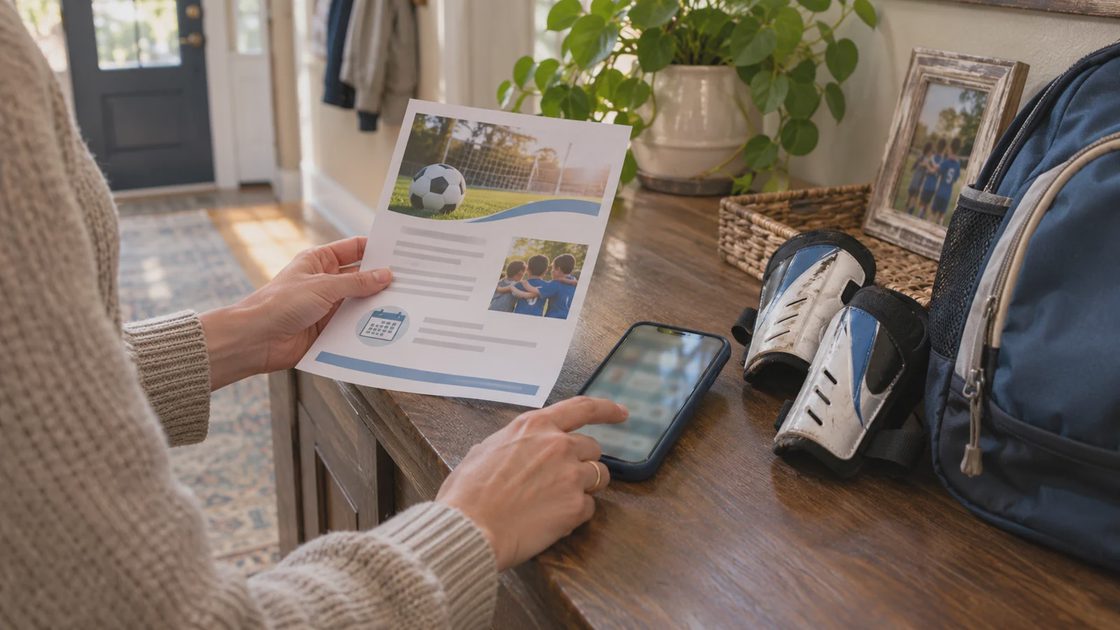
For routine plans, I recommend four fields: what, when, where, and who owns the next action. Put the responsible person's name in the title when it helps them recognize the task quickly.
Keep sensitive details out of broad household entries. “Appointment — transportation needed” can communicate the coordination requirement without sharing medical notes. Color coding helps scanning, but names and words still need to carry the meaning.
Treat notifications as a handoff, not proof someone saw it
There are three separate questions: can another person see the calendar, can they edit it, and will their device alert them? Fixing one does not automatically fix the others.
Google Calendar notification settings are personal to each account. Your reminder choices do not configure your partner's phone. TimeTree likewise lets each member control notifications.
I recommend a short check on both devices:
Add a harmless test event to the actual shared calendar.
Ask the other person to open it, then change the location.
Confirm that the new location appears on your device.
Set a near-future reminder and check whether it arrives on each person's phone.
This separates a missing invitation or editing permission from a notification problem. If the event is visible but silent, check that person's calendar reminders and phone notification permissions before switching apps.
For a same-day change, shared calendar notifications are a backup. Update the event, message the responsible person directly, and get an acknowledgment. An altered pickup arrangement deserves more than a quiet edit.
How to organize a family calendar without creating another job
Start with one shared calendar and the next seven days. Add the plans that affect another person's time: pickups, appointments, visitors, travel, and coverage gaps. Leave individual tasks in personal systems unless someone else needs to coordinate around them.
For a shared calendar for couples, the same rule keeps things manageable. You need visibility into the plans that affect each other, rather than a complete diary of every hour.
The person who receives a school notice or books an appointment should add it. If someone cannot enter it immediately, agree on one place to send it and who will finish the entry. Otherwise, the calendar simply gives the household's usual organizer another inbox.

When creating an event, check which calendar it is being saved to. A complete entry on a private calendar still leaves everyone else uninformed. Choose the shared destination before saving, and keep one authoritative entry rather than manually maintaining copies across several apps.
Spend a few minutes together checking the week: who is away, which event has no owner, and which pickup overlaps another commitment? Children can participate by checking their next activity or packing from an agreed plan; they do not need responsibility for the whole system.
After a week, judge the setup by what happened. Could both adults find the next appointment? Did each person add something without help? Were changed plans acknowledged? Those answers tell you more than whether the calendar looks perfectly color-coded.
My recommendation stays simple: choose the most familiar app that meets your household's sharing needs, then make the entries useful enough for another person to act on. Today, add one upcoming event with a time, place, and named owner—and ask that person to find it on their own phone.

No comments yet — be the first to share a thought.