
To block an email in Gmail, open the message, use the three-dot menu beside the reply control, and choose the option to block that sender. Future messages from the blocked address go to Spam. I use blocking for an unwanted sender, unsubscribe for legitimate marketing I no longer want, and filters when useful messages need a quieter destination.
Those distinctions matter when your inbox contains both a store's daily offers and the receipt you need for a return. The aim is to reduce unwanted mail without making useful messages harder to find.
Choose the result before choosing the button
Blocking, unsubscribing, filtering, and reporting spam change different things. Start with what you want future messages to do.
What is arriving | Tool to consider | Expected job |
|---|---|---|
An unwanted sender using a recognizable address | Block | Route future messages from that address to Spam |
A legitimate newsletter you chose to receive | Unsubscribe | Ask the mailing list to stop sending that subscription |
Useful but nonurgent updates | Filter | Label, archive, or otherwise handle matching messages |
Suspicious or unsolicited junk | Report spam or phishing as appropriate | Report the unwanted message rather than interact with its offer |
This Gmail block vs unsubscribe distinction prevents a common mistake: using a broad block when you still need account notices from the same address. Check the actual sender of your receipts and marketing before deciding.
I do not assume a familiar company name makes a message genuine. If an email asks for credentials, payment, or urgent verification, open the known app or website directly instead of using the message's link.
Block a sender on a computer
Open Gmail and the unwanted message. Find the message-level menu near Reply, choose Block followed by the sender's name, and confirm if prompted. This acts on that sender rather than on every message containing the company's name.
Check the address behind the display name before confirming. A friendly label can conceal a different address, while one company can legitimately use several addresses for different services.
The Gmail blocking controls also explain how to reverse the action. On desktop, Settings, See all settings, then Filters and Blocked Addresses gives you a place to review blocked senders.
Blocking does not delete the messages already in your inbox. Handle those separately after confirming the future-mail rule is the one you wanted. Keep any correspondence you need as a record rather than deleting it merely to make the block feel complete.
On iPhone or Android, use the message menu
To block emails in Gmail on iPhone or block emails in Gmail on Android, open the Gmail app, select the correct account, and open a message from the sender. Use the message's More menu and choose the block option.
Be careful to distinguish the menu belonging to the message from other navigation controls. If you cannot find the action in your app version, open Gmail on a computer and use the desktop controls rather than guessing at a similar-looking command.
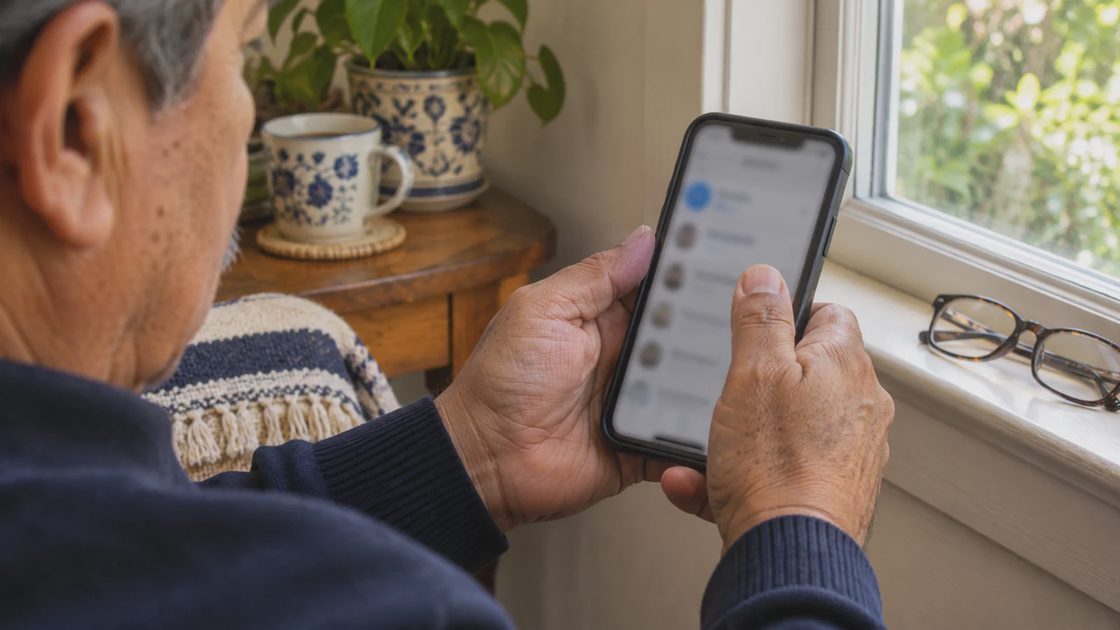
If you read Gmail through Apple Mail or another email client, that app's blocking or junk controls may differ. For a rule you want to manage in Gmail itself, use Gmail and verify it in the account's settings.
I also confirm which inbox the unwanted mail reached. Blocking an address in a personal account does not establish a rule in a separate work account. A combined inbox can make that distinction easy to overlook.
Why blocked emails still appear in Spam
Blocked emails still appear in Spam because that is where Gmail routes future mail from the blocked address. Blocking is not a guarantee that the sender cannot transmit another message to your account.
If you are checking Spam and finding the same sender, that can mean the block is doing its routing job. If the messages still enter the inbox, inspect the exact sender address and whether it differs from the one you blocked.
A sender that rotates addresses creates a different problem from one address repeatedly writing to you. Blocking each address may not address the source of the unwanted mail. Report suspicious junk and consider narrowly defined filtering only when a dependable pattern is clear.
Do not create a filter that deletes every message containing an ordinary word just because it appears in the junk. “Invoice,” “delivery,” or a common first name can also occur in legitimate mail. Preview the matching messages before turning a pattern into an automatic rule.
For threatening or harassing correspondence, preserve the relevant records and use appropriate reporting channels. Inbox organization does not establish that a broader communication problem has ended.
Unsubscribe from legitimate mail you no longer need
For a newsletter or promotion you recognize, use Gmail's supported unsubscribe control where available, or manage the subscription through the service's known account settings. A subscription change can take time to reach every mailing list.
I choose this route when the business relationship still matters. You may want order updates but no longer want daily offers. Check whether the preference controls separate those categories rather than blocking the address that sends both.
Suspicious mail is different. Do not follow an unfamiliar unsubscribe page that asks for your password or payment details. Use the legitimate service directly if you need to inspect your preferences.
For ordinary unwanted bulk mail, the Gmail spam controls explains reporting and the distinction from managing subscriptions. The goal is to stop interacting with messages that should not have your attention.
Filter useful updates instead of losing them
Gmail filters can apply labels or archive matching messages while keeping them available for search. I use this when an update matters occasionally but does not need to compete with current requests.
On a computer, open the search options, enter the criteria, and run the search first. Inspect the results before choosing Create filter and the desired action. The filter instructions make the preview step particularly useful.
For example, if a school system sends routine announcements from a dedicated address, I can route those notices to a school label while leaving teacher requests in the inbox. That only works if the address or another reliable criterion actually separates the two kinds of message.
If both come from the same address and subjects are inconsistent, I avoid automatic archiving until a trustworthy rule is available. A slightly busier inbox is preferable to a hidden form request with a deadline.
Start with a reversible label-only rule if you are uncertain. Review a few matching messages before adding a stronger action. Deleting automatically deserves more care than simply adding a label.
Reverse the rule that caused the wrong result
If you blocked someone by mistake, unblock the sender through a message or the desktop blocked-address list. Then inspect the message location and any filters that may also be affecting delivery.
Removing a block does not explain every missing email. A filter, a different sender address, a category, or another account can still be involved. Search for the specific message and trace the actual rule rather than changing many settings at once.
When testing a filter, use a harmless example and inspect where it arrives. Do not use an urgent real request as the first proof that the rule works. Keep the rule's purpose simple enough that you can recognize a wrong match.
Keep a brief note of an unusual filter's purpose if another person also manages the account. A rule called “School updates from this address” is easier to review than an unexplained automatic archive action. When the sender changes its address or message format, review the rule against the new mail rather than broadening it until almost everything matches. A rule should remain understandable enough that you can explain which useful messages it deliberately leaves in the inbox.
Make future mail easier to handle
Knowing how to block an email in Gmail is useful when one sender is the problem. Unsubscribe reduces legitimate marketing, while filters preserve useful updates in a more appropriate place. Each tool works better when it matches the kind of mail you want to change.
Choose one recurring unwanted message now. Confirm the account and sender, decide whether you want it stopped, reported, or quietly organized, and apply the matching control. Then verify the result before creating a broader rule.


No comments yet — be the first to share a thought.